
Using the Healthcare ChatBot Example Application and Tools
Table of contents
DISCLAIMER:
In this guide, we develop a healthcare ChatBot example application, chosen because it is a worst case design challenge. Needless to say, but we will say it anyway, a ChatBot is notoriously difficult to implement successfully, because of the free-form prompts from users and the many possible responses models can generate. A healthcare ChatBot is even more challenging because of the risk the ChatBot could provide bad advice that leads to a poor patient outcome, if followed. Hence, this example is only suitable for educational purposes. It is not at all suitable for use in real healthcare applications and it must not be used in such a context. Use it at your own risk.
TIP: To see the discussion about using unit benchmarks in the software development life cycle, jump to here.
The User Guide Tools and Exercises vs. the ChatBot Application
The tools and exercises in this user guide are written with an emphasis on teaching concepts, with minimal distractions, with less concern about being fully engineered for real-world, enterprise development and deployment, where more sophisticated tools might be needed.
In contrast, the Healthcare ChatBox example application applies the concepts in a more “refined” implementation that also illustrates how existing software development practices and new AI-oriented techniques can be used together in a real software-development project.
For convenience, this chapter gathers in one place information spread across other chapters. See also the discussion in the repo’s README.
We welcome your feedback on our approach, as well as contributions. Are you able to adapt the tools to your development needs? Have you found it necessary to adopt other tools, but apply the techniques discussed here? How could we improve the tools and examples?
Setup
NOTE:
The
maketarget processes discussed below assume you are using a MacOS or Linux shell environment likezshorbash. However, the tools described below are written in Python, so the commands shown for running them should work on any operating system with minor adjustments, such as paths to files and directories. Let us know about your experiences: issues, discussions.
Whether using the tools or the example application, you start by setting up the required dependencies, etc.
Clone the project repo, change to the ai-application-testing directory, and run the following make command to do “one-time” setup steps:
make one-time-setup
If make won’t work on your machine, do the following steps yourself:
- Install
uv, a Python package manager. - Run the setup command
uv envto install dependencies. - Install
ollamafor local model inference (optional).
TIPS:
- Try
make helpfor details about themakeprocess. There are also--helpoptions for all the tools discussed below.- For any
maketarget, to see what commands will be executed without running them, pass the-nor--dry-runoption tomake.- The
maketargets have only been tested on MacOS. Let us know if they don’t work on Linux. The actual tools are written in Python for portability.- The repo README has an Appendix with other tools you might find useful to install.
One of the dependencies managed with uv is LiteLLM, the library we use for flexible invocation of different inference services. All our development has been done using ollama for cost-benefit and flexibility reasons, but it is not required if you want to use an inference provider instead, like OpenAI or Anthropic. In that case, see the LiteLLM usage documentation for how to configure LiteLLM to use your preferred inference service. You will need to modify the Makefile, as discussed in Changing the Default Model Used below.
Pick Your Models
If you use ollama, download the models you want to use. For example:
ollama serve             # in one terminal window
ollama pull gpt-oss:20b  # in another terminal window
In our experiments, we used the models shown in Table 1 (see also a similar table here):
| Model | # Parameters | Notes |
|---|---|---|
gpt-oss:20b |
20B | Excellent performance, but requires a lot of memory (see below). |
llama3.2:3B |
3B | A small but effective model in the Llama family. Should work on most laptops. |
granite4:latest |
3B | Another small model tuned for instruction following and tool calling. |
smollm2:1.7b-instruct-fp16 |
1.7B | The model family used in Hugging Face’s LLM course, which we will also use to highlight some advanced concepts. The instruct label means the model was tuned for improved instruction following, important for ChatBots and other user-facing applications. |
REQUEST: Let us know which models work well for you!
Table 1: Models used for our experiments.
To install one or more of these models, use these commands (for any operating system and shell environment):
ollama pull gpt-oss:20b
ollama pull llama3.2:3B
ollama pull granite4:latest
ollama pull smollm2:1.7b-instruct-fp16
(Yes, some models use B and others use b…)
We provide example results for some of these models in
src/data/examples/ollama.
By default, we use gpt-oss:20b as our inference model, served by ollama. This is specified in the Makefile by defining the variable MODEL to be ollama_chat/gpt-oss:20b. (Note the ollama_chat/ prefix.) All four models shown above are defined in the MODELS variable; there are all-models-* targets that try all of them.
Unfortunately, a 20B parameter model is too large for many developer machines. Specifically, we found that Apple computers with M1 Max chips with 32GB of memory can struggle when using gpt-oss:20b, especially if lots of other apps are using significant memory. 48GB or 64GB of memory is much better. However, acceptable performance, especially for learning purposes, was achieved on 32GB machines when using the other, smaller models. We encourage you to experiment with other model sizes and with different model families. Consider also Quantized versions of models.
Changing the Default Model Used
If you don’t want to use the default model setting, gpt-oss:20b, or you want to use a different inference option than ollama, first see the LiteLLM documentation for information about specifying models for other inference services.
There are two ways to specify your preferred model:
Change the Makefile
Edit the Makefile and change the following definitions:
MODEL- e.g.,ollama_chat/llama3.2:3B. This will make the change the default for all invocations of the tools and the example ChatBot app. (Theollama_chat/orollama/prefix is required if you are usingollama, withollama_chat/recommended byLiteLLM.) For convenience, we defined severalMODEL_*variables for different models, then refer to the one we want when definingMODEL. You can do this if you like…INFERENCE_SERVICE- e.g.,openai,anthropic,ollama.INFERENCE_URL- e.g.,http://localhost:11434forollama.- Others? The
LiteLLMdocumentation may tell you to define other variables. You will also need an API key or other credentials for most services. Do not put this information in the Makefile! This avoids the risk that you will accidentally commit secrets to a repo. Instead, use an environment variable or other solution described by theLiteLLMdocumentation.
Override Makefile Definitions on the Command Line
On invocation, you can dynamically change values, such as the MODEL used with ollama. This is the easiest way to do “one-off” experiments with different models. For example:
make MODEL=ollama_chat/llama3.2:3B ...
If you want to try all the models mentioned above with one command, use make all-models-..., where ... is one of the other make targets, like all-code, which runs all the tool invocations for a single model, e.g.,
make all-models-all-code
You can also change the list of models you regularly want to use by changing the definition of the MODELS variable in the Makefile.
NOTE:
See also the LiteLLM documentation for guidance on any required modifications to the arguments passed in our Python code to the LiteLLM
completionfunction. (Search forresponse = completionto find all the occurrences.) We plan to implement automatic handling of such changes eventually.
Running the Tools and ChatBot Application with make
Now you are set up and you can use make to run the tools discussed and also the complete example ChatBot application. We will discuss the tools first, then the application.
On MacOS and Linux, using make is the easiest way to run the exercises. The actual commands are printed out and we repeat them below for those of you on other platforms. Hence, you can also run the Python tools directly without using make.
TIPS:
- For all of the tool-invocation
makecommands discussed from now on, you can run each one for all the models (as defined by theMakefilevariableMODELS) by prefixing the target name withall-models-, e.g.,all-models-run-tdd-example-refill-chatbot. You can use it for most targets, although it doesn’t make sense for some of them, like thehelp-*targets and the ChatBot application, which is interactive.- For a given model (as defined by the
MakefilevariableMODEL), you can run all of the tools with one command,make all-code. Hence, you can run all the examples for all the models discussed above usingmake all-models-all-code. (This target doesn’t run the ChatBot application.)
Run tdd-example-refill-chatbot
This tool is explained in the section on Test-Driven Development. It introduces some concepts, but isn’t intended to be a tool you use long term, in contrast to the next two unit-benchmark-data-* tools discussed below.
Run this make command:
make run-tdd-example-refill-chatbot
There are shorthand “aliases” for this target:
make run-terc
make terc
This target first checks the following:
- The
uvcommand is installed and on your path. - Two directories defined by
makevariables exist. If not, they are created withmkdir -p, where the option-pensures that missing parent directories are also created:OUTPUT_LOG_DIR, where most output is written, which istemp/output/ollama_chat/gpt-oss_20b/logs, whenMODELis defined to beollama_chat/gpt-oss:20b. (The:is converted to_, because:is not an allowed character in MacOS file system names.) BecauseMODELhas a/, we end up with a directoryollamathat contains agpt-oss_20bsubdirectory.OUTPUT_DATA_DIR, where data files are written, which istemp/output/ollama_chat/gpt-oss_20b/data, whenMODELis defined to beollama_chat/gpt-oss:20b.
If you don’t use the make command, make sure you have uv installed and either manually create the same directories or modify the corresponding paths shown in the next command.
After the setup, the make target runs the following command:
cd src && time uv run tools/tdd-example-refill-chatbot.py \
	--model ollama_chat/gpt-oss:20b \
	--service-url http://localhost:11434 \
	--template-dir prompts/templates \
	--data-dir .../output/ollama_chat/gpt-oss_20b/data \
	--log-file .../output/ollama_chat/gpt-oss_20b/logs/${TIMESTAMP}/tdd-example-refill-chatbot.log
TIMESTAMP will be the current time when the uv command started, of the form YYYYMMDD-HHMMSS, and the values passed for --data-dir and --log-file are absolute paths. The other paths shown are relative to the src directory.
The time command prints execution time information for the uv command. It is optional and you can omit it when running this command directly yourself or on a system without this command. It returns how much system, user, and “wall clock” times were used for execution on MacOS and Linux systems. Note that uv is used to run tools/tdd-example-refill-chatbot.py.
The arguments are as follows:
| Argument | Purpose |
|---|---|
--model ollama_chat/gpt-oss:20b |
The model to use, defined by the make variable MODEL, as discussed above. |
--service-url http://localhost:11434 |
The ollama local server URL. Some other inference services may also require this argument. |
--template-dir prompts/templates |
Where we keep prompt templates we use for all the examples. |
--data-dir .../output/ollama_chat/gpt-oss_20b/data |
Where any generated data files are written. (Not used by all tools.) |
--log-file .../output/ollama_chat/gpt-oss_20b/logs/${TIMESTAMP}/tdd-example-refill-chatbot.log |
Where log output is captured. |
The tdd-example-refill-chatbot.py tool runs two experiments, one with the template file q-and-a_patient-chatbot-prescriptions.yaml and the other with q-and-a_patient-chatbot-prescriptions-with-examples.yaml. The only difference is the second file contains embedded examples in the prompt, so in principal the results should be better, but in fact, they are often the same, as discussed in the TDD chapter.
NOTE:
These template files were originally designed for use with the
llmCLI tool (see the Appendix in the repo’sREADMEfor details aboutllm). In our Python tools, LiteLLM is used instead to invoke inference. We extract the content we need from the templates and construct the prompts we send through LiteLLM.
The tdd-example-refill-chatbot.py tool passes a number of hand-written prompts that are either prescription refill requests or something else, then checks what was returned by the model. As the TDD chapter explains, this is a very ad-hoc approach to creating and testing a unit benchmark.
Run unit-benchmark-data-synthesis
Described in Unit Benchmarks, this tool uses an LLM to generate Q&A (question and answer) pairs for unit benchmarks. It addresses some of the limitations of the more ad-hoc approach to benchmark creation used in the previous TDD exercise:
make run-unit-benchmark-data-synthesis
There are shorthand “aliases” for this target:
make run-ubds
make ubds
After the same setup steps as before, the following command is executed:
cd src && time uv run tools/unit-benchmark-data-synthesis.py \
	--model ollama_chat/gpt-oss:20b \
	--service-url http://localhost:11434 \
	--template-dir prompts/templates \
	--data-dir .../output/ollama_chat/gpt-oss_20b/data \
	--log-file .../output/ollama_chat/gpt-oss_20b/logs/${TIMESTAMP}/unit-benchmark-data-synthesis.log
NOTE:
If you run the previous tool command, then this one, the two values for
TIMESTAMPwill be different. However, when you makeall-codeor anyall-models-*target, the same value will be used forTIMESTAMPfor all the invocations.
The arguments are the same as before, e.g., the --data-dir argument specifies the location where the Q&A pairs are written, one file per unit benchmark, with subdirectories for each model used. For example, after running this tool with ollama_chat/gpt-oss:20b, the output will be in .../output/data/ollama_chat/gpt-oss_20b. We replace : with _, because : is an invalid character for MacOS file paths. This directory will have the following files of synthetic Q&A pairs:
synthetic-q-and-a_patient-chatbot-emergency-data.jsonlsynthetic-q-and-a_patient-chatbot-non-prescription-refills-data.jsonlsynthetic-q-and-a_patient-chatbot-prescription-refills-data.jsonl
(Examples can be found in the repo’s src/data/examples/ollama directory.)
They cover three unit-benchmarks:
emergency: The patient prompt suggests the patient needs urgent or emergency care, so they should stop using the ChatBot and call 911 (in the US) immediately.refill: The patient is asking for a prescription refill.other: (i.e.,non-prescription-refills) All other patient questions.
The prompt used tells the model to return one of these classification labels, along with some additional information, rather than an ad-hoc, generated text like, “It sounds like you are having an emergency. Please call 911…”
Each of these data files are generated with a single inference invocation, with each invocation using these corresponding template files:
synthetic-q-and-a_patient-chatbot-emergency.yamlsynthetic-q-and-a_patient-chatbot-prescription-refills.yamlsynthetic-q-and-a_patient-chatbot-non-prescription-refills.yaml
Run unit-benchmark-data-validation
Described in LLM as a Judge, this tool uses a teacher model to validate the quality of the Q&A pairs that were generated in the previous exercise:
make run-unit-benchmark-data-validation
There are shorthand “aliases” for this target:
make run-ubdv
make ubdv
After the same setup steps, the following command is executed:
cd src && time uv run tools/unit-benchmark-data-validation.py \
	--model ollama_chat/gpt-oss:20b \
	--service-url http://localhost:11434 \
	--template-dir prompts/templates \
	--data-dir .../output/ollama_chat/gpt-oss_20b/data \
	--log-file .../output/ollama_chat/gpt-oss_20b/logs/TIMESTAMP/unit-benchmark-data-validation.log \
In this case, the --data-dir argument specifies where to read the previously-generated Q&A files, and for each file, a corresponding “validation” file is written back to the same directory:
synthetic-q-and-a_patient-chatbot-emergency-data-validation.jsonlsynthetic-q-and-a_patient-chatbot-non-prescription-refills-data-validation.jsonlsynthetic-q-and-a_patient-chatbot-prescription-refills-data-validation.jsonl
(See examples in src/data/examples/ollama.)
These files “rate” each Q&A pair from 1 (bad) to 5 (great).
Also, summary statistics are written to stdout and to the output file temp/output/ollama_chat/gpt-oss_20b/unit-benchmark-data-validation.out. Currently, we show the counts of each rating, meaning how good the teacher LLM rates the Q&A pair. (For simplicity, we used the same gpt-oss:20b model as the teacher that we used for generation.) From one of our test runs a text version of the following table was written:
| Files: | 1 | 2 | 3 | 4 | 5 | Total | |
|---|---|---|---|---|---|---|---|
| synthetic-q-and-a_patient-chatbot-emergency-data.jsonl | 0 | 4 | 7 | 12 | 168 | 191 | |
| synthetic-q-and-a_patient-chatbot-prescription-refills-data.jsonl | 0 | 0 | 0 | 0 | 108 | 108 | |
| synthetic-q-and-a_patient-chatbot-non-prescription-refills-data.jsonl | 2 | 2 | 0 | 1 | 168 | 173 | |
| Totals: | 2 | 6 | 7 | 13 | 444 | 472 |
Total count: 475 (includes errors), total errors: 3
The teacher model is asked to provide reasoning for its ratings. It is instructive to look at the output *-validation.jsonl files that we saved in src/data/examples/ollama_chat/gpt-oss_20b/data/.
Note that the emergency Q&A pairs had the greatest ambiguities, where the teacher model didn’t think that many of the Q&A pairs represented real emergencies (lowest scores) or the situation was “ambiguous” (middle scores).
In fact, the program deliberately ignores the actual file where the Q&A pair appears. For example, we found that the emergency file contains some refill and other questions. Only the actual label in the answer corresponding to a question was evaluated.
Is this okay? Each data file is supposed to be for a particular use case, yet in fact the Q&A pairs have some mixing across files. You could decide to resort all the data by label to keep them separated by use case or you could just concatenate all the Q&A pairs into one big set. We think the first choice is more in the spirit of how focused, automated, use-case specific tests are supposed to work, but it is up to you…
The same template file was used for evaluating the three data files:
Run the Langflow Pipeline for the Tools
The unit benchmark data synthesis and validation tools can also be executed as a Langflow pipeline. See src/tools/langflow/README.md for details.
Run the ChatBot Example Application
This purpose of this application is to represent something closer to what you would actually build, with a growing suite of automated unit and integration tests corresponding to incrementally added features.
NOTE: The test suite for the ChatBot application demonstrates how to apply the ideas and techniques discussed in this guide to actual projects.
The application can be invoked in one of several ways:
make chatbot               # Run the interactive ChatBot.
make run-chatbot           # Synonym for "chatbot".
After the same setup steps, like output directory creation, the following command is executed, which you could also run directly, where we show the values for arguments as defined by Makefile variables:
cd src && time uv run python -m apps.chatbot.main \
  --model ollama_chat/gpt-oss:20b \
  --service-url http://localhost:11434 \
  --template-dir prompts/templates \
  --data-dir data \
  --confidence-threshold 0.9 \
  --log-file .../logs/.../chatbot.log
TIP: You can always see the current version of this command by running
make -n chatbot.
For help on the application, try this:
make help-chatbot # Show help for the ChatBot.
A simple prompt is presented where you can enter “patient prompts” and see the replies. If you prefer a nicer GUI interface, see Using the ChatBot with Open WebUI below.
The arguments are similar to the previously-discussed arguments, with a new argument --confidence-threshold, which we will explain below.
The source code, etc. for this application and the automated tests are located in these locations:
| Content | Location | Notes |
|---|---|---|
| Source code | src/apps/chatbot |
Main source code for the ChatBot and the MCP server |
| Prompt Templates | src/prompts/templates |
The prompts used. |
| Unit Tests | src/tests/unit/ |
Conventional unit tests and AI-specific tests for the chatbot in src/tests/unit/apps/chatbot |
| Integration Tests | src/tests/integration/ |
The make target integration-tests also runs the unit tests in a more exhaustive way, as discussed below. |
| Test Data | src/tests/data |
Test Q&A data for the AI tests. |
We will discuss the automated tests below, in Automated Testing: Practical Enhancements.
Using the ChatBot with Open WebUI
If you prefer using a GUI instead of the CLI prompt for the ChatBot, an integration is provided with Open WebUI.
Begin by running the API server, e.g., make api-server. Then in a separate terminal window, run one of these commands:
make open-webui            # Run Open WebUI configured to provide a GUI for the ChatBot.
make run-open-webui        # Synonym for "open-webui".
In a browser, open the URL http://localhost:8080.
You will be prompted to create an admin user account. Pick whatever name, email, and password you want.
For completeness, there are two other useful commands:
make help-open-webui       # Show help for the API server.
make remove-open-webui     # Cleans up some temporary "uv" and other files created for this app.
Next, a little setup is required; we have to tell Open WebUI about the ChatBot server at http://localhost:8000. To do this, open the administration settings link, http://localhost:8080/admin/settings/db.
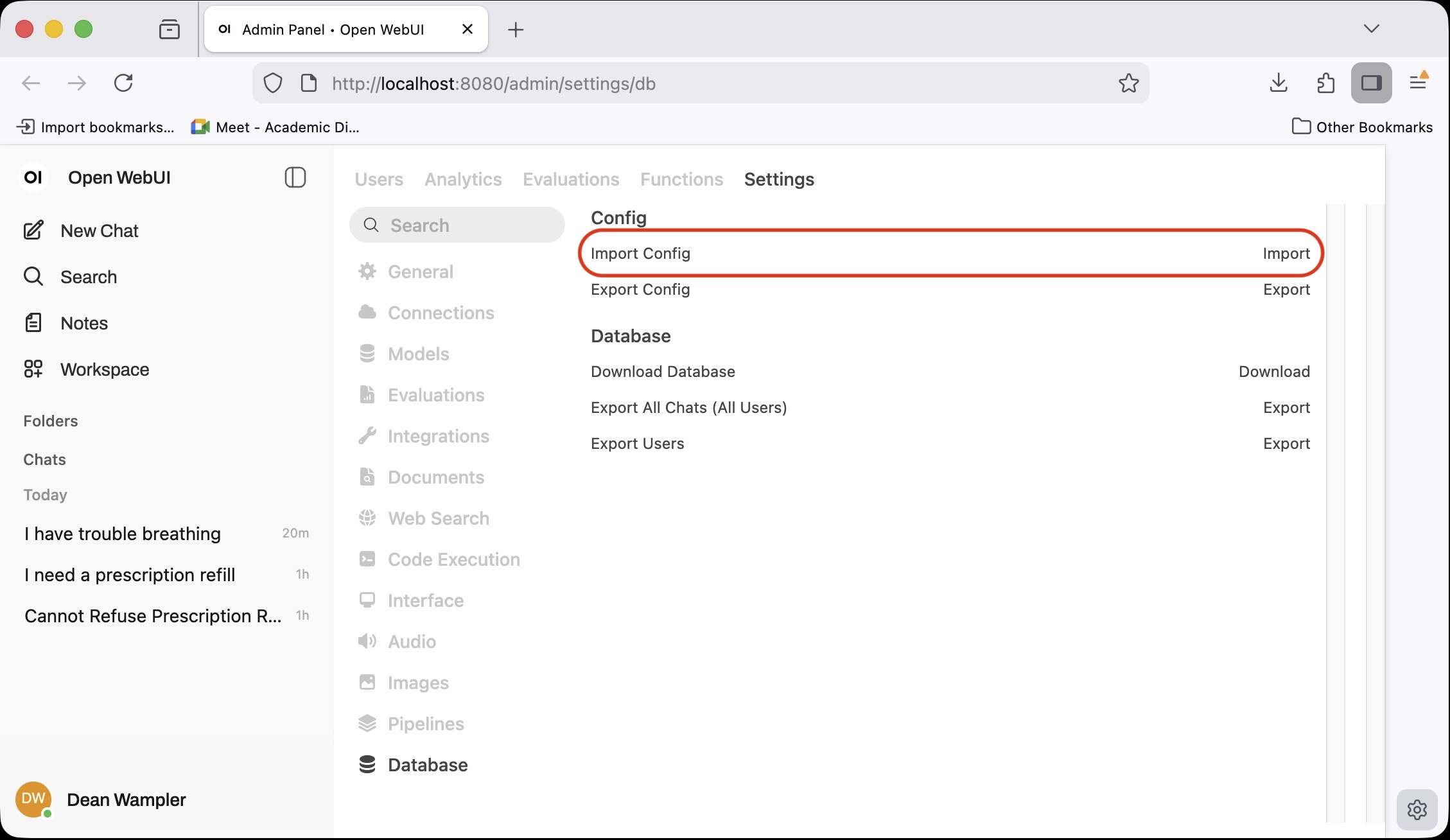
Click the Import link on the right hand side under Config (shown in the red rounded rectangle highlight). Then browse to src/apps/chatbot/open-webui/open-webui.config.json in the project repository or download that file from here. Submit the dialog to load the settings.
Next, check that they were successfully applied. Go to the Administration connection settings, http://localhost:8080/admin/settings/connections. You should see the following:
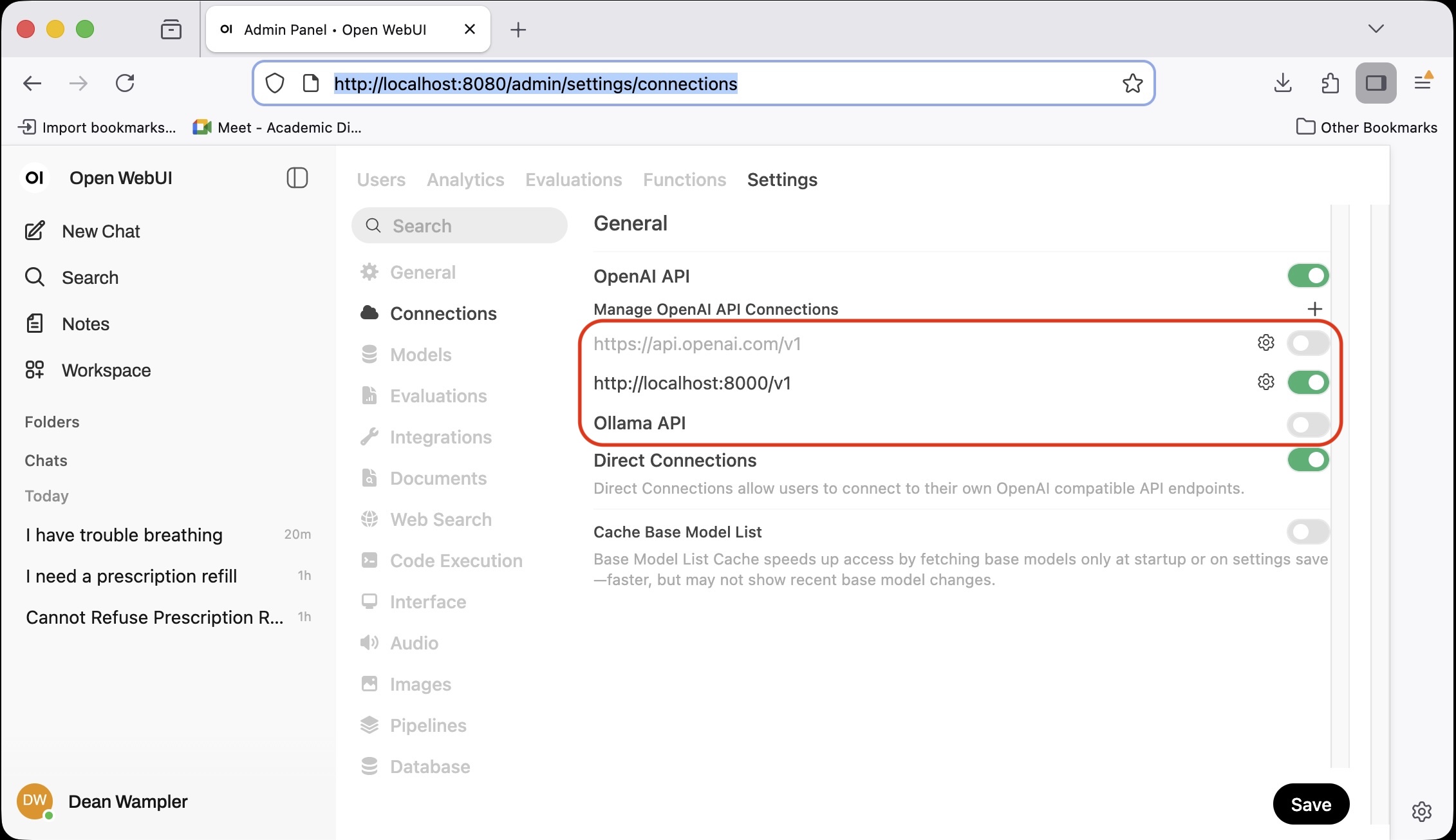
The changes we made are highlighted with red rounded rectangles:
- Disabled OpenAI connections.
- Added a custom OpenAI-compatible connection to our API server at
http://localhost:8000. - Disabled Ollama connections.
The first and third change were just to simplify the experience and prevent unintentionally talking directly to OpenAI and Ollama. If you prefer, you can turn these back on by clicking the grey slider on the right for each one (it will turn green). Click the “gear” icons to edit the connections.
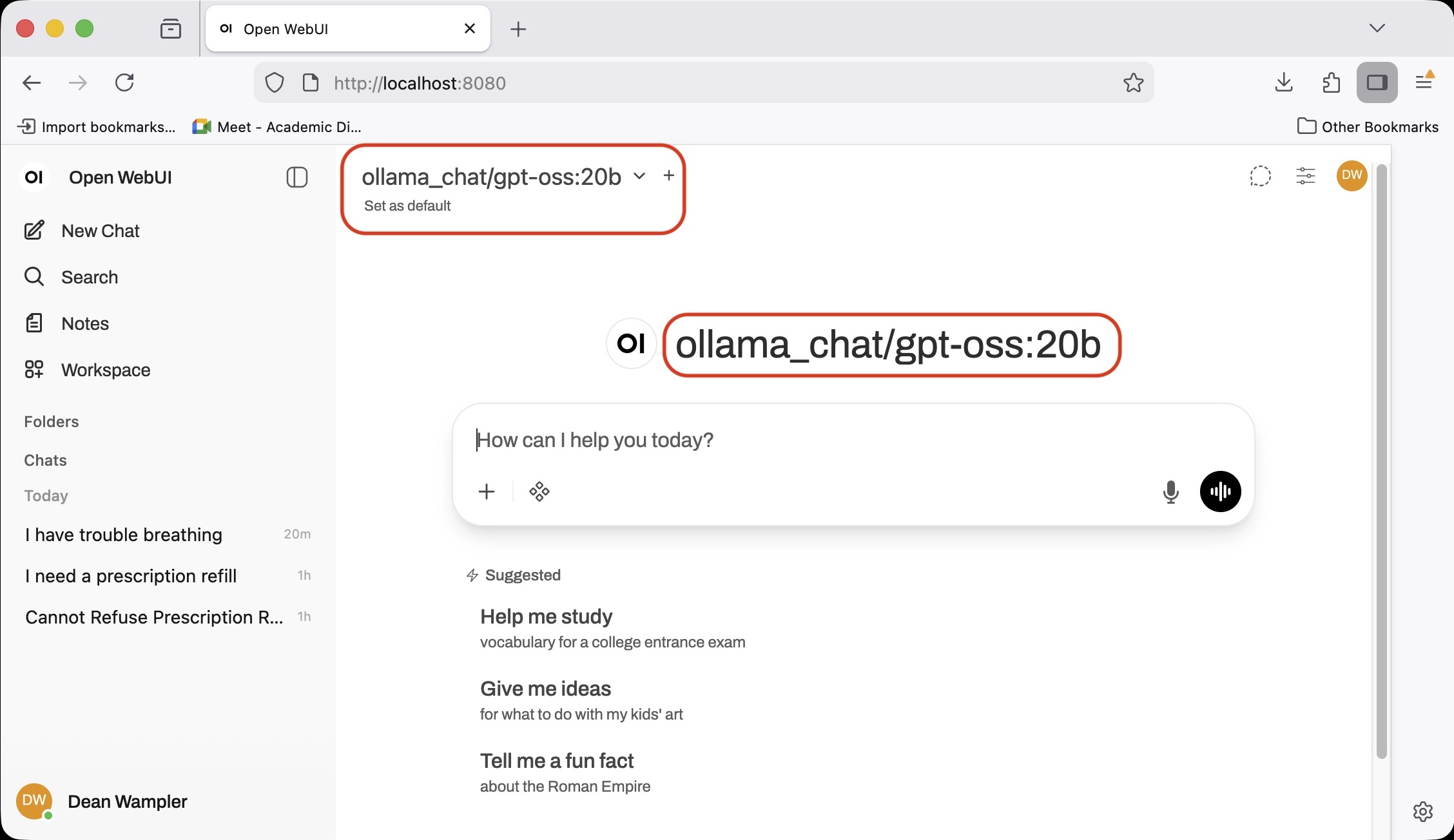
Finally, if you go to the chat page, http://localhost:8080, you should see the model selected ollama_chat/gpt-oss:20b, which will be served through our API server. If you see another model name shown, click the down arrow (“chevron”) and select this model. With the OpenAI and Ollama direct connections disabled, there should only be this option and possibly one other added by Open WebUI.
Try it!
Note: It is also possible to configure Open WebUI to use the ChatBot MCP server (discussed next). See the Open WebUI documentation for details on configuring MCP servers.
An MCP Server for the ChatBot
Running the MCP server is very similar. Since it runs the ChatBot for you, it takes the same arguments as the ChatBot. The only difference is the Python module invoked: uv run python -m apps.chatbot.mcp_server.server.
make mcp-server            # Run the MCP server for the ChatBot (Also runs the ChatBot, so don't run both!)
make run-mcp-server        # Synonym for "mcp-server".
make help-mcp-server       # Show help for the MCP server.
make inspect-mcp-server    # Run the server with the `npx @modelcontextprotocol/inspector` tool.
make check-mcp-server      # Runs a 'sanity check' that the MCP server works.
For more details on running the MCP server, see the src/apps/chatbot/mcp_server/README.md.
Tip: Use the
make inspect-mcp-servercommand to run the MCP server under the inspector toolnpx @modelcontextprotocol/inspector. Node.js has to be installed already to run the inspector.
An OpenAI-compatible API Server for the ChatBot
An OpenAI-compatible API server is provided. Running it is very similar to running the MCP server. Since it runs the ChatBot for you, it takes the same arguments as the ChatBot, plus two additional options we will discuss shortly. The only other difference is the Python module invoked: uv run python -m apps.chatbot.api_server.server.
make api-server            # Run the OpenAI-compatible API server for the ChatBot (Also runs the ChatBot, so don't run both!)
make run-api-server        # Synonym for "api-server".
make help-api-server       # Show help for the API server.
make check-api-server      # Runs a 'sanity check' that the API server works.

make view-api-server-docs  # Open a browser showing the API server "docs".
make view-api-server-redoc # Open a browser showing the API server "redoc".
the other two options are --host HOST and --port PORT for the API’s own web server, not to be confused with --service-url SERVICE_URL for the Ollama server. The host cannot have the http:// prefix in the value. Just use localhost, 0.0.0.0, 192.168.0.1, etc. The default values for these two CLI arguments are localhost and 8000, respectively.
For more details on running the OpenAI-compatible API server, see the src/apps/chatbot/api_server/README.md.
Automated Testing: Practical Enhancements
This user guide is all about solving the problem of continuing to use traditional software development life cycle (SDLC) practices, which rely heavily on deterministic behavior, with applications that use stochastic, generative AI. The ChatBot application applies the principles described in a practical way for a realistic AI project.
You can run the unit and integration tests with these make targets, but warning, they run for a long time since they use inference!
make tests               # unit tests. Synonyms: test, unit-tests
make integration-tests   # integration tests
The automated tests are found in the src/tests directory. Specifically, the generative AI unit benchmarks are driven by four test suites in src/tests/unit/apps/chatbot/ that are named ai_test_chatbot_*.py, where * is one of the use case names. Most of the implementation is in a TestBase parent class in src/tests/utils/apps/chatbot/testbase.py. This is the code that implements the unit benchmarks for this project.
Test data files of Q&A (question and answer) pairs (and additional metadata) were adapted from the example tool outputs found in src/data/examples/ollama_chat/gpt-oss_20b/data. However, we made a lot of changes reflecting what we learned while iterating on the development of the ChatBot application!
These test data files in JSONL format are in the src/tests/data directory. There are four files (at the time of this writing) for user queries that we classify into four, broad use cases:
| Use Case | Description |
|---|---|
| Emergencies | Queries that strongly suggest the patient needs urgent medical attention. In the US, they would be told to call 911 immediately. |
| Prescriptions | Refill requests, questions about how to take a medication, store it, compatibility with particular activities, etc. |
| Appointments | Requests to schedule or reschedule an appointment. |
| Others | Other general health questions and other kinds of queries, such as how to pay a bill, where the office is located, etc. (Many of these Q&A pairs suggest possible future use cases to support.) |
There is one JSONL file per use case. The format is illustrated with this example from appointments.jsonl (nicely formatted…):
{
  "query":   "I need to reschedule my next appointment.",
  "labels":  ["appointment"],
  "actions": ["reschedule"],
  "rating":  5
}
We have been calling these examples Q&A (question and answer) pairs, but they actually contain a query (question) and three expected metadata values corresponding to metadata fields the prompt asks the ChatBot to return. At this time, don’t do any testing on the actual generated text in the response, as it is too stochastic, but a possible enhancement is to use LLM as a Judge to assess how good they are:
| Expected Metadata Field | Corresponding Response Field | Discussion |
|---|---|---|
labels |
label |
The response’s label is expected to be found in the labels list. Usually there is just one element in labels, but sometimes more than one label is listed when the query is potentially ambiguous. |
actions |
actions |
The response actions list should be a subset of the allowed actions. |
rating |
N/A | How the LLM as a Judge validation process rated this synthetic example. |
In addition, there are optional fields that may appear in the examples:
| Expected Metadata Field | Corresponding Response Field | Discussion |
|---|---|---|
reason |
N/A | Why the judge rated the example the way it did. |
prescriptions |
prescriptions |
List of one or more prescriptions mentioned in the query. |
body_parts |
body_parts |
List of one or more body parts mentioned in the query. |
vaccines |
vaccines |
List of one or more vaccines mentioned in the query. |
The last three fields only appear in an example JSONL if they are non-empty.
During testing, if the rating is below a threshold, the ChatBot result is logged as low confidence and not checked for expected results. The ChatBot is also asked to provide its confidence of the result, which is used similarly during the test.
The label returned by the ChatBot should correspond to the use case file name! However, in practice, some queries are ambiguous enough that more than one label would be a reasonable interpretation, which is why labels is a list. The first list element is always the name of the use case. So, for example, there are many examples in prescriptions.jsonl with the label list ["prescription", "appointment"], like this one:
{
  "query":         "Do I need a follow-up appointment for my prescription for ozempic?",
  "labels":        ["prescription","appointment"],
  "actions":       ["inquiry"],
  "prescriptions": ["ozempic"],
  "rating": 5
}
You can see from the query that it’s reasonable to interpret the query as an appointment or prescription query. It is really both, but we “force” the ChatBot to choose and return only one label.
Dealing with Slow and Expensive Inference
The AI-specific tests support a few features not normally found in conventional test suites, reflecting some unique challenges when writing automated tests for generative AI applications. Let’s discuss these enhancements in depth, starting with the challenge of long test runs.
Normally, we want our unit tests to run very quickly, so we can run them frequently during every small iteration of development. Because inference is relatively slow and expensive, running the full set of Q&A pairs is only practical for occasional (e.g., nightly) integration tests.
Running the unit test suite using local
ollamainference with all the Q&A examples can take many hours to complete!
Hence, the first unique feature supported by the test suite is an environment variable DATA_SAMPLE_RATE, which tells the test what percentage of the total Q&A pairs to use. For unit tests, it is set to the value of UNIT_TEST_DATA_SAMPLE_RATE, which is defined to be 0.1 (or 10%) in the Makefile. So, 10% of the Q&A pairs are used for unit tests. These runs still take tens of minutes to complete. However, since some of the Q&A data files have just a few dozen pairs, a lower limit of five is used if the calculated sample size would be less than five.
The integration tests (integration-tests target) run all 100% of the Q&A pairs, by default.
Hence, the sampling feature provides faster turn around for unit tests, but also some extra randomness, as a test prompt could cause a test failure, but it won’t be triggered every time! In real development projects, the integration-tests target should be built as frequently as possibly (at least nightly?), since they are more likely to find such cases that the unit tests might miss.
On the other hand, many of the examples are very close to each other, either a few word changes or very similar phrasing, so it is likely that the ChatBot will respond the same way to each variant. So, in terms of behavior, the unit test coverage is better than the sample percentage might suggest.
Second, an environment variable ACCUMULATE_TEST_ERRORS is used to trigger another feature flag, when the value is non-empty, meaning true. If true, it tells the test suite to run all of the test prompts and accumulate any errors, then report them at the end, rather than the normal approach of “failing fast” on the first error. The rationale for this feature is to make it easier to capture all the possible problems in one run, given how much time they take, and then work to address them at once. Sometimes common patterns or limitations are evident, e.g., a set of mislabeled Q&A pairs in a data file. This flag defaults to true in the Makefile. As we become more comfortable with writing and running the AI-specific unit tests, we may set the default to false for unit tests, returning to the familiar, fail-fast behavior, while keeping it enabled for integration tests.
When using this feature, it is convenient to log the key output as JSON to a file for subsequent analysis. (CLI JSON processing tools like jq are very helpful.) We write JSONL files with the problem information into the directory src/tests/logs.
What Does Pass/Fail Mean?
We spent a great deal of time thinking about how to handle discrepancies, inference results that didn’t exactly match what was expected in the Q&A pair. For the most part, the ChatBot does not return the generated text verbatim to patients. It asks the LLM to return a JSON object with the generated text and metadata like the best use case label and other useful metadata for the user query. For several of the use cases, a “canned” answer is shown to the user and the generated text is ignored. For example, a message like “Call 911!” is shown for perceived emergency situations.
For other data differences, we have somewhat involved logic for
logic warnings vs. errors
a feature called “low-confidence results” is supported. During our data validation discussion, where we used the unit-benchmark-data-validation.py tool, we said the output includes a rating of how good we think the prompt is for the use case, etc. We kept these ratings in the automated test data used for the ChatBot. In fact, we simply stripped out poorly rated synthetic data from the test data set. That leaves some test prompts as “okay”, but possibly poor. So, during testing, if an input prompt and answer carries a rating lower than a certain threshold, the inference result for that test prompt is reported at the end of the test, but no checking is done on the result. In other words, it is simply assumed the result is unreliable for that prompt. This reflects our recommendation for real-world ChatBot inference; if you don’t have complete confidence in the response, perhaps because the user prompt is confusing, then default to a safe-handling path, such as asking a human to take over the conversation or perhaps asking the user for clarification.
A second threshold used in the application is for the inference process’s own confidence in its work. If it returns a confidence level below a configurable threshold, the default “safe” response is returned to the user. These two thresholds are also handled as Makefile variables, RATING_THRESHOLD, defined as 4 on a scale of 1 to 5, and CONFIDENCE_THRESHOLD, defined as 0.9 on a scale of 0.0 to 1.0, corresponding to a range of 0% to 100%.
Finally, the AI-related unit benchmarks, as opposed to unit tests for other code, are also used as the integration tests, with the different feature invocations just described for more exhaustive coverage. There are additional integration tests, too.